
Where are my AI images and videos saved, and how do I get them back?
In the tool that made them, not on your computer: ChatGPT keeps them under Images, Gemini under My Stuff, Higgsfield under Assets and Midjourney on its Organize page. This guide shows where each one is, as of 8 October 2026, how long it lasts, and how to get everything into one place you control.
They’re in your account on each tool, not on your computer
When you make a picture or a clip with AI, the file stays with the service that made it. It’s saved to your account there, in a list of everything you’ve made, and it only reaches your computer when you download it. That’s why “where did my image go?” is such a common question: the answer is different in every tool, and the places have moved as the apps have been redesigned.
Here is where each of the big ones keeps your work, from their own help pages, read on 8 October 2026:
| Tool | Where your work is | Download several at once? | How long it stays |
|---|---|---|---|
| ChatGPT | Images (chatgpt.com/images), and Library on the web | Yes, from Library | Until you delete it |
| Gemini app | My Stuff, and the chat you made it in | Google’s pages don’t say | Chats auto-delete after 18 months by default |
| Higgsfield | Assets (higgsfield.ai/asset/all) | Yes, from the bulk action bar | “While your subscription is active” |
| Midjourney | The Organize page (midjourney.com/archive) | Yes, by selection, day or folder | Trash only hides; single images can’t be deleted |
The sections below take each one in turn, then set out a simple routine for getting it all into one place.
ChatGPT keeps your pictures under Images, and your files in Library
OpenAI’s help page on images in ChatGPT says that every image you create is “automatically saved under Images”, which you can open from the sidebar on the web and in the mobile apps, or go to directly at chatgpt.com/images. Open an image and you can copy it, share it, or choose Save to download it to your device.
ChatGPT also has a Library, on the web, for the files you upload and create. OpenAI says generated images “will continue to appear in the Images tab”, and that you can favourite them in Library too. Library is where you can select one or more files and download them together, and its search can be filtered to generated files and to images.
Two details catch people out:
- Deleting works through the chat. OpenAI says that to remove an image from My images, you delete the conversation it was made in. Its Library page adds that deleting a chat does not delete files saved to Library, so those need deleting there as well.
- Library has a storage limit. As of October 2026, OpenAI lists 500 MB for Free, 4 GB for Go, 20 GB for Plus and Business, and 100 GB for Pro. Files stay until you delete them.
Older write-ups on this describe an earlier version of the image library. If what you see doesn’t match them, go by OpenAI’s current help pages.
Gemini puts them in My Stuff, and your activity settings decide how long
Google’s post on the Gemini 3 update, published on 18 November 2025, introduced a “My Stuff” folder in the Gemini app, to make “the images, videos and reports you’ve created” easier to find. Your pictures also stay in the chat you made them in, so searching your chat history works too.
How long that history lasts is set in Gemini Apps Activity. Google’s Gemini Apps Privacy Hub, updated on 24 September 2026, says activity is auto-deleted after 18 months by default, and that you can change that to 3 months, 36 months or never. If you turn Keep Activity off, Google keeps chats with your account for only 72 hours.
Google’s pages don’t say whether a picture stays in My Stuff after the chat it came from is deleted, or whether you can download several at once. Until they do, treat the chat as the thing that holds your work: download anything you want to keep from Gemini on the day you make it, especially if you’ve shortened the auto-delete period or turned activity off.
Higgsfield and Midjourney give you a real library, with folders and bulk download
Two tools built for people making a lot of images go further, and both do it well.
Higgsfield. Its help page, What’s in my Higgsfield account? (updated 28 August 2026), says every image, video and audio file you create is saved automatically to Assets, whichever tool or model you used. You can filter by Image, Video or Audio, make folders, heart favourites and search by keyword. To download in bulk, select items and use the action bar at the bottom of the page, which offers Download, Publish all, Add to a folder, Like and Delete. The page says your assets “remain accessible while your subscription is active”, and that cancelling “doesn’t delete your account or your generations”.
If you use the Higgsfield API rather than the website, the rule is different. Higgsfield’s API help page (16 September 2026) says output files “stay available for at least 7 days after creation” and may be removed after that, and recommends saving them to your own storage.
Midjourney. The Organize page at midjourney.com/archive holds everything you’ve made, with filters, a timeline to jump to any day, and a search that covers your own prompts and parameters. Select images by dragging or with Shift and click, or take a whole day with the plus icon next to its date, and a bar at the bottom lets you download them. Midjourney’s folders page adds that you can download a whole folder from its three dots menu. One thing to know: trashing an image hides it but doesn’t delete it or make it private, and Midjourney’s docs say individual creations can’t be deleted.
Get everything into one place you control
Every one of these histories is a good record of what you made in that tool. None of them is a record of your project, which probably used three of them. And they last as long as the service, your plan and your account do: when OpenAI closed Sora, people with videos only in the app had to export them before the deletion.
A routine that works whichever tools you use:
- Download what you keep, when you make it. Not at the end of the project. The bulk tools above make a weekly catch-up quick in Higgsfield and Midjourney; for ChatGPT and Gemini, save as you go.
- Keep one folder per project, not one per tool. Your Higgsfield clips and your ChatGPT stills for the same ad belong side by side.
- Name files so you can find them later. The date first, then the project and the model:
2026-10-08 spring ad nano-banana-2.jpg. A file calledimage (14).pngis lost the day you download it. - Keep two copies, one on your computer or a drive, one somewhere separate.
- Keep your references with your work. The pictures that define a character are what let you carry it into the next model. Our guide to keeping a character consistent covers that.
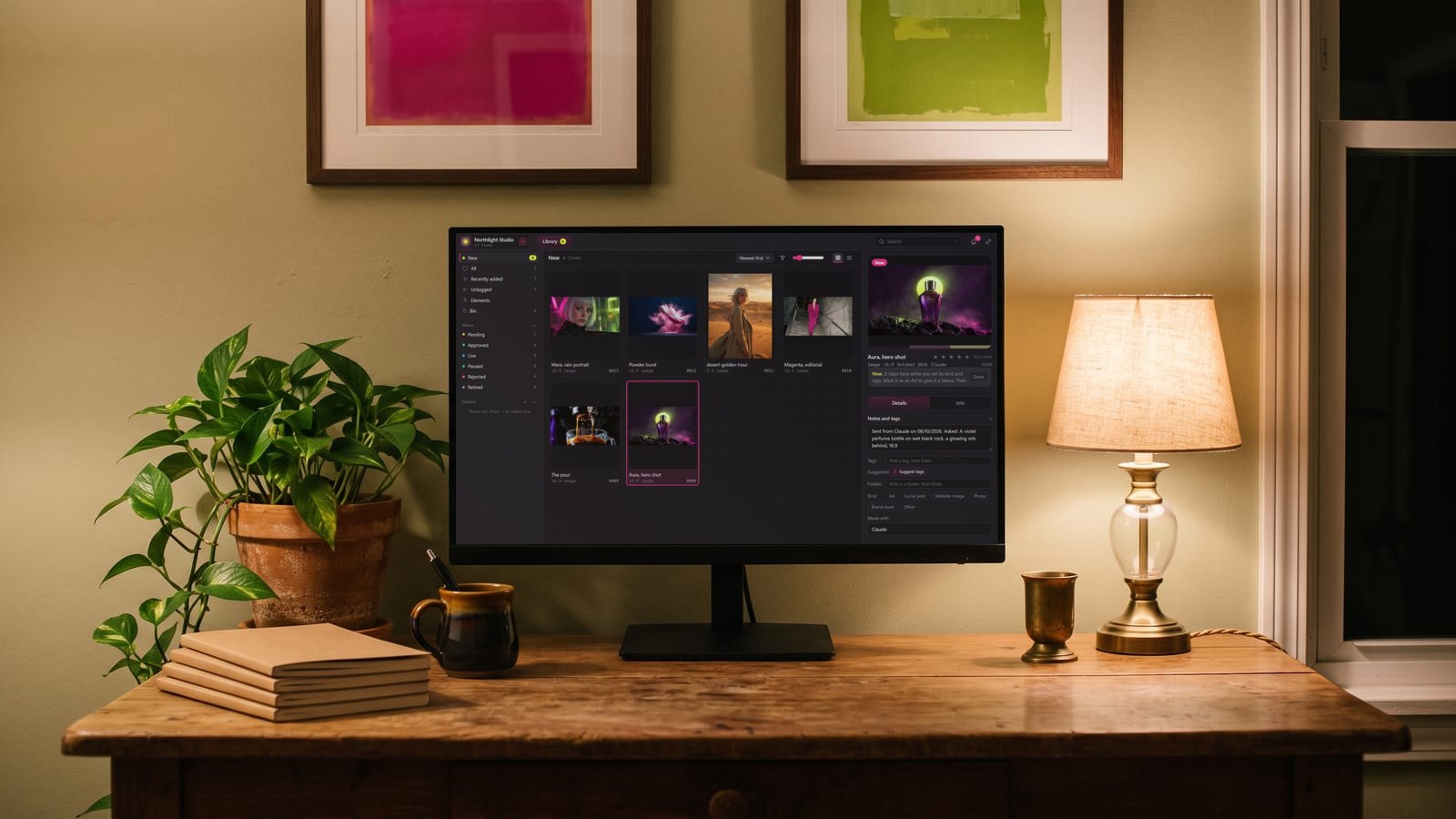
This is the problem we built BosOn for. It’s a desktop app that keeps everything you make with AI in one library: it can bring in your whole Higgsfield history in one click, you can drop in files and folders from anywhere else, and it files what you keep from its Create screen named, dated and marked with the model that made it. It’s in early access, and the tools it works with today are on our integrations page.
Questions people also ask
Where does ChatGPT save the images it makes?
OpenAI's help centre says every image you create with ChatGPT is saved automatically under Images (chatgpt.com/images), on the web and in the mobile apps. ChatGPT's Library, on the web, also holds files you upload and create. Nothing is saved to your device until you open an image and choose Save.
How do I delete an image from ChatGPT?
OpenAI's help page says that to remove an image from My images you delete the conversation it was made in. Its Library page adds that deleting a chat does not delete files saved to Library, so a copy there has to be deleted from Library itself.
Where are my Gemini images?
Google added a My Stuff folder to the Gemini app in November 2025 to make the images, videos and reports you create easier to find. They also stay in the chats you made them in, which Google auto-deletes after 18 months by default unless you change the setting in Gemini Apps Activity.
Can I download all my Higgsfield generations at once?
Yes. Higgsfield's help centre says everything you make is saved automatically to Assets (higgsfield.ai/asset/all). Select the items you want and use the bulk action bar at the bottom of the page, which includes Download.
How do I download all my Midjourney images?
On midjourney.com's Organize page, select images by dragging, with Shift and click, or with the plus icon next to a date to take a whole day, then choose download from the bar at the bottom. Midjourney's docs also say you can download a whole folder from its three dots menu.
Sources
- OpenAI Help Center: Images in ChatGPT
- OpenAI Help Center: Using Library to manage files in ChatGPT
- Google: Gemini 3 brings upgraded smarts and new capabilities to the Gemini app (18 November 2025)
- Gemini Apps Help: Gemini Apps Privacy Hub (updated 24 September 2026)
- Higgsfield Help Center: What's in my Higgsfield account? (updated 28 August 2026)
- Higgsfield Help Center: What is the Higgsfield API and how do I get started (16 September 2026)
- Midjourney Docs: Organizing your creations
- Midjourney Docs: Using folders